


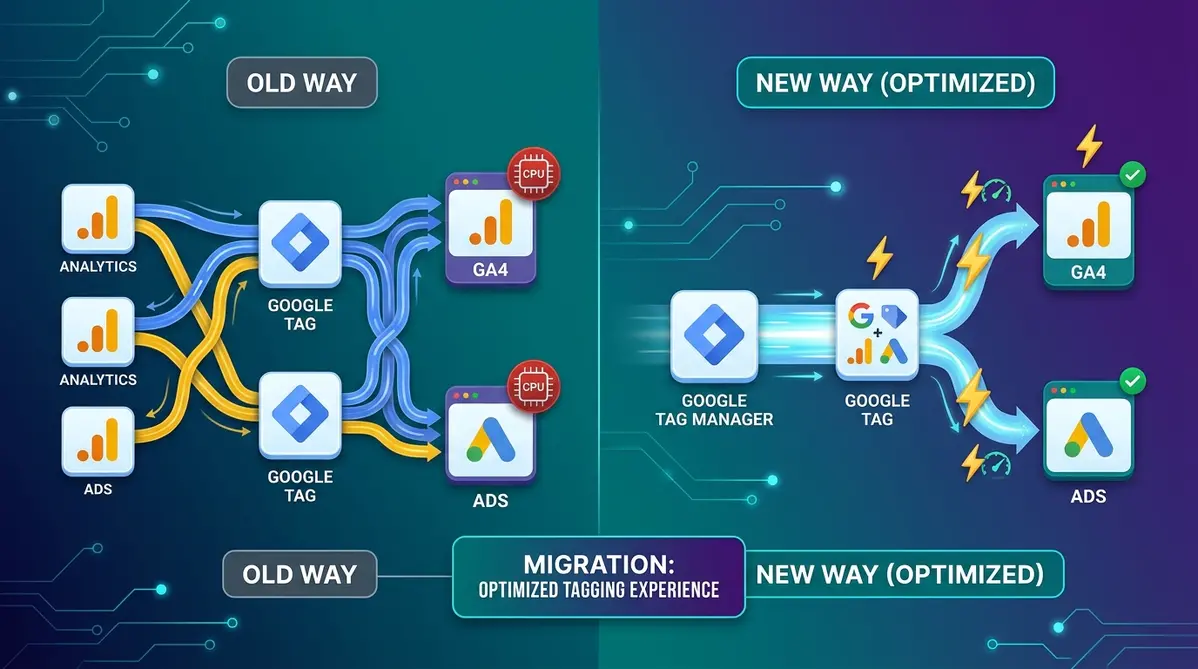
In this article, we will examine the updates in detail, explore why they were introduced, and walk through a step-by-step guide on how to transition to the new structure.
1. Why Did Google Make This Change?
Previously, tracking architecture relied on a multi-step process:
A separate Google tag (for instance, for Google Analytics 4 or Google Ads) had to be configured inside Google Tag Manager.
Relevant events and data were routed to their respective platforms through this intermediary tag.
If you used multiple Google tools simultaneously (such as both Google Analytics and Google Ads), you had to load separate Google tags with different IDs. Each additional tag consumed resources in the user's browser, leading to slower page load times.
With the new update, intermediary Google tags are eliminated. All data transmissions now use Destinations—meaning data is sent directly to the end platforms, while foundational configurations are managed centrally.
2. Step-by-Step: The Migration Process
To transition your existing tags to the new format, follow these practical steps:
Step 1: Launch the Migration Wizard
- Log in to your Google Tag Manager account and navigate to the Overview dashboard.
- Locate the notification banner for the Optimized Tagging Experience.
- Click the Get started button.
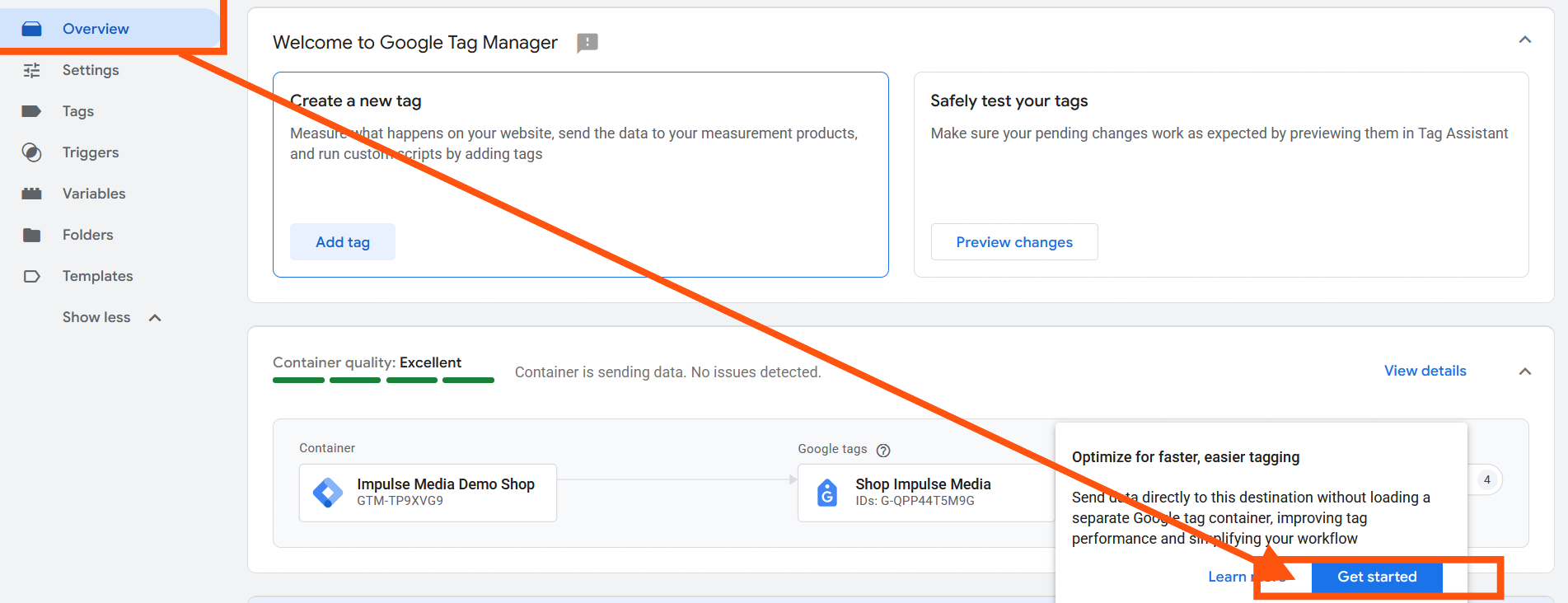
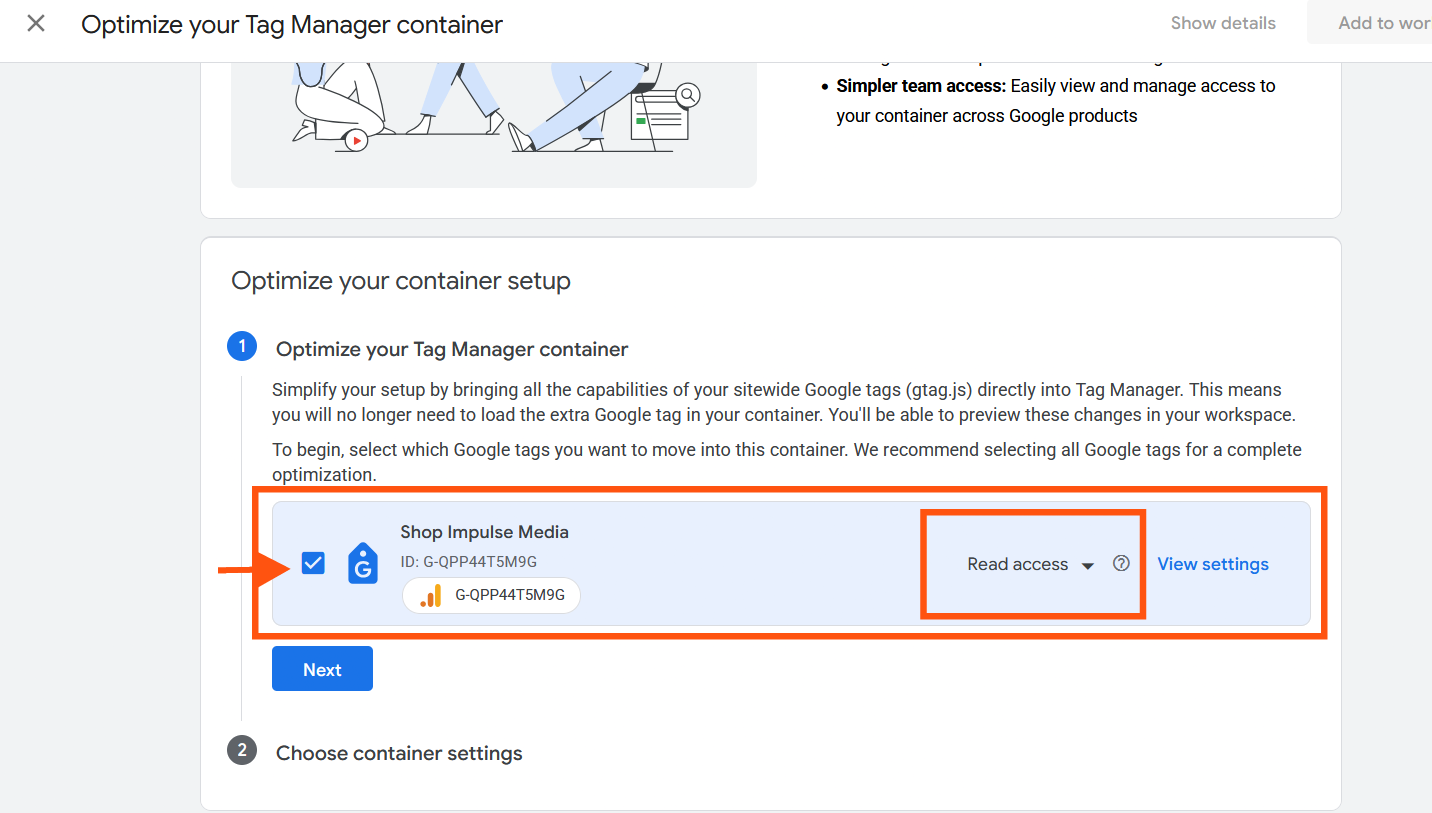
Step 2: Review Tags for Conversion The Migration Wizard will scan the existing tags within your container and display a list of Google Analytics and Google Ads tags scheduled for automatic conversion into Destinations.
Step 3: Configure Access Management Next, define the permission levels between your linked accounts:
- Read Access: Users who have access to the corresponding Google Analytics or Google Ads account will be able to view the structure inside the GTM container (in read-only mode).
- No Access: Disables cross-platform access integration for enhanced security and isolation.
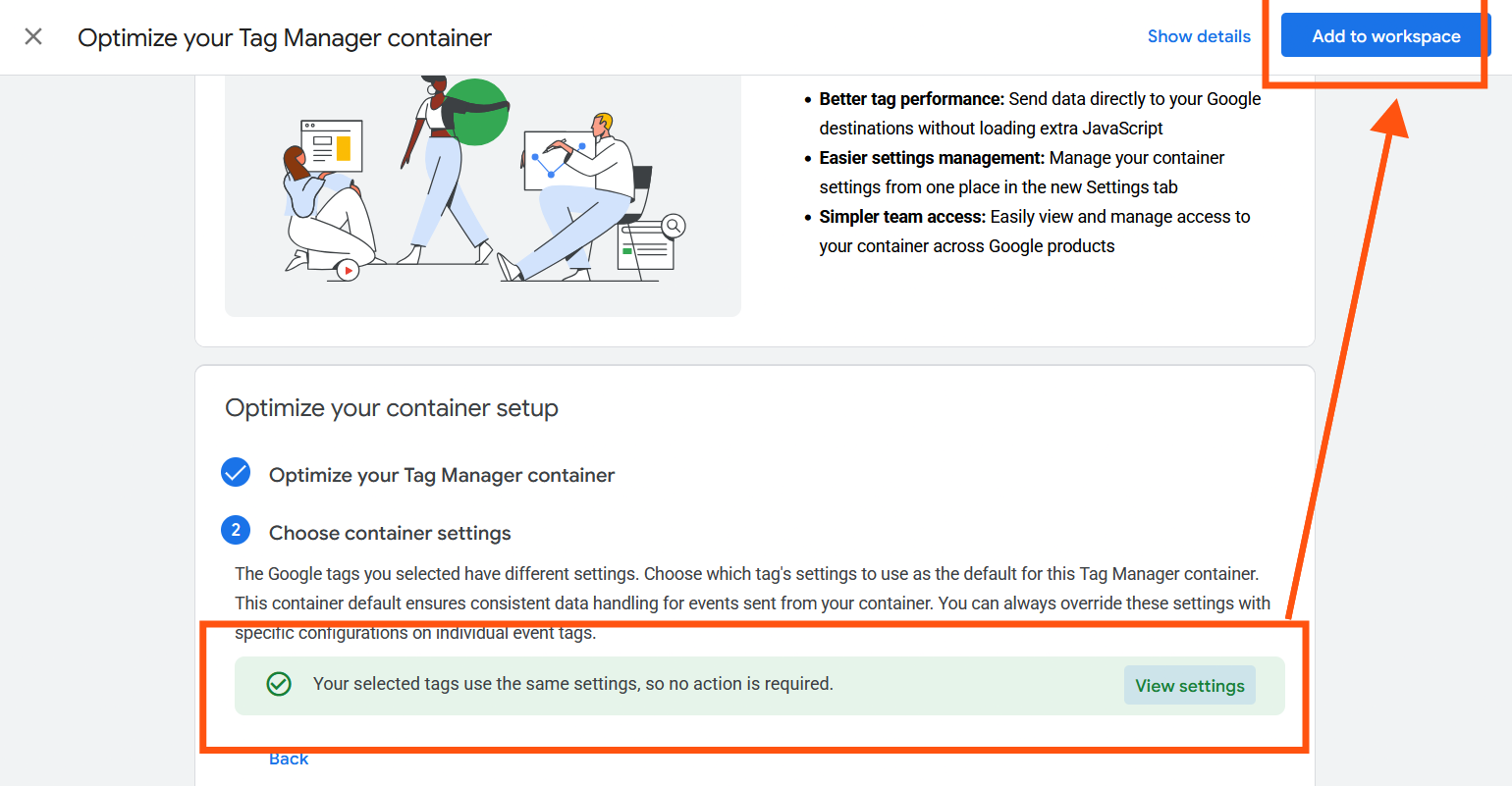
Step 4: Import Global Settings (Container Settings) The Migration Wizard will ask which configuration source to use as the primary baseline for inheriting rules such as:
- Subdomain and cross-domain tracking
- Internal traffic filtering
- Privacy settings and user-provided data collection
- Once you have reviewed the configurations, click Add to workspace to apply the changes to your workspace.
3. What Changes in the Interface After Migration?
Upon completing the migration process, you will notice three key updates within the GTM interface:
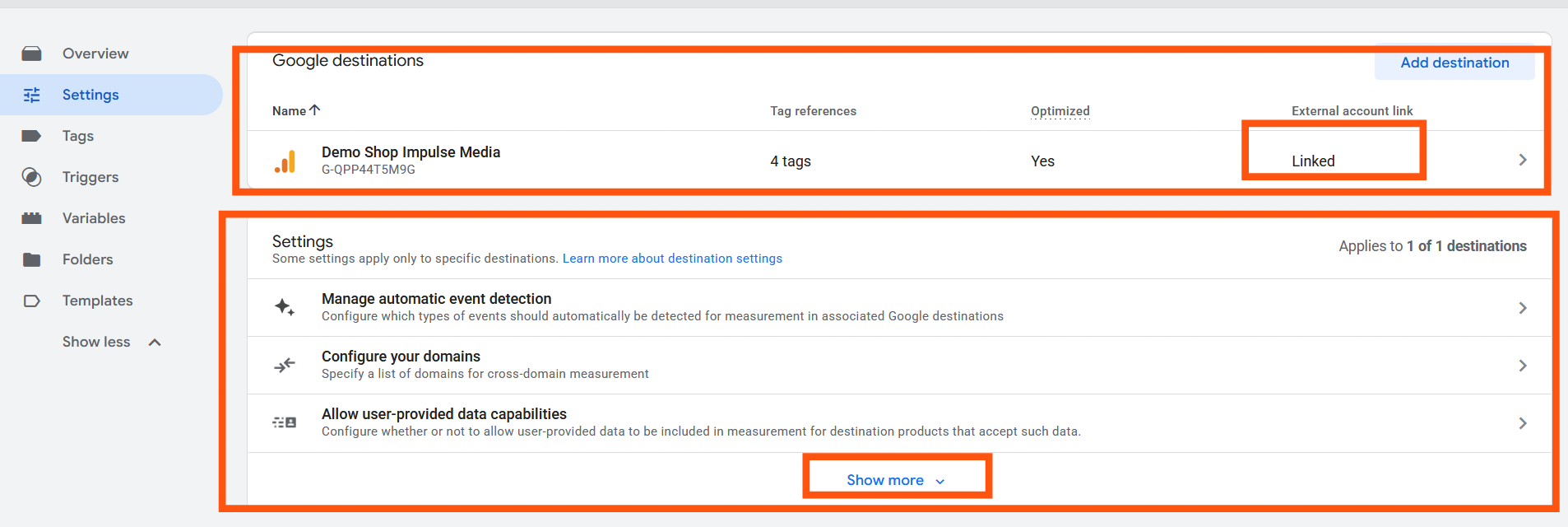
A. The "Tags" Section Classic "Google tags" are now renamed and converted directly into Destinations (e.g., Google Analytics and Google Ads).
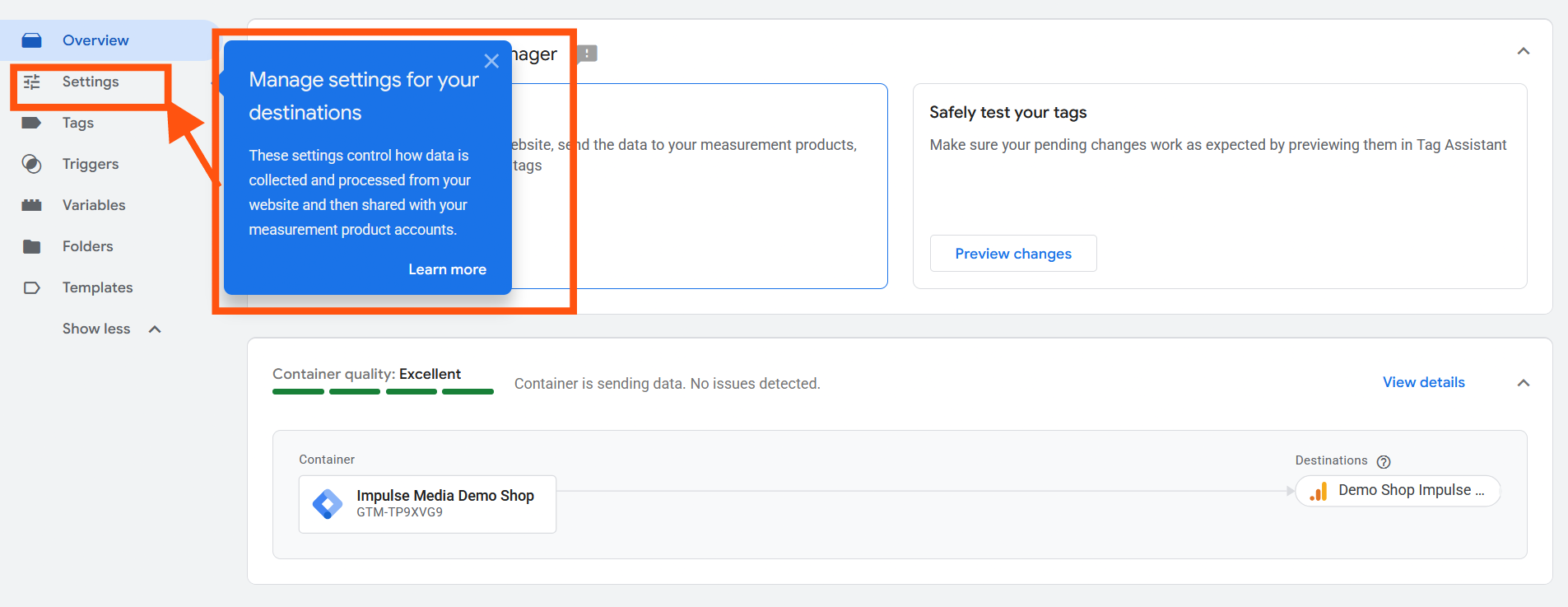
B. The New "Settings" Section (Centralized Management) A new Settings tab appears in the left-hand navigation menu, allowing you to manage Shared Settings across all Google Destinations.
Any new domain or rule added here is automatically applied to all connected destinations (Analytics, Ads, etc.).
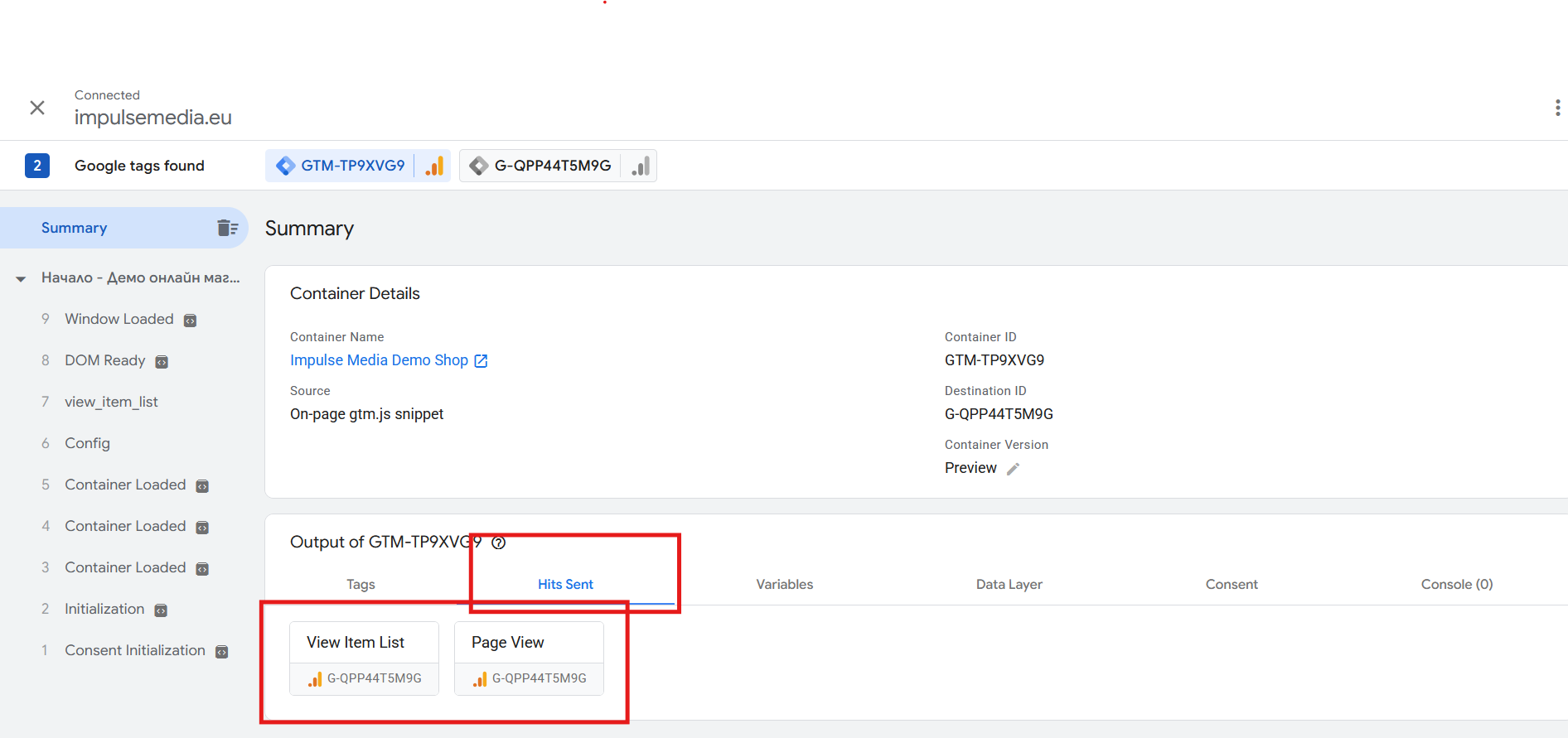
C. Updated Tag Assistant (Preview Mode) When testing changes in Preview mode, Tag Assistant now features a new Hits Sent tab. This view displays the exact requests and parameters being transmitted to each individual destination in real time.
4. Conclusion
The updated tagging framework in Google Tag Manager represents a significant step toward faster website performance and simplified marketing tag maintenance. Transitioning to Destinations and Shared Settings saves time, reduces configuration overhead, and prevents data duplication.
Author: Tsveta Bataklieva


